We’ve all been there. That moment you look at your screen and think, "I just need one more Dock."
Dock Float transforms that familiar limitation into absolute freedom. It feels instantly native, blending seamlessly into your system without cluttering it. Just drag and drop your essential apps, files, and folders exactly as you always have. You can even add your favorite Apple Shortcuts right to the Dock for one-click automation.
Whether you’re designing, coding, or just browsing the web, build a new Dock with exactly the tools and workflows you need right now. The workspace you’ve always imagined is finally a reality.
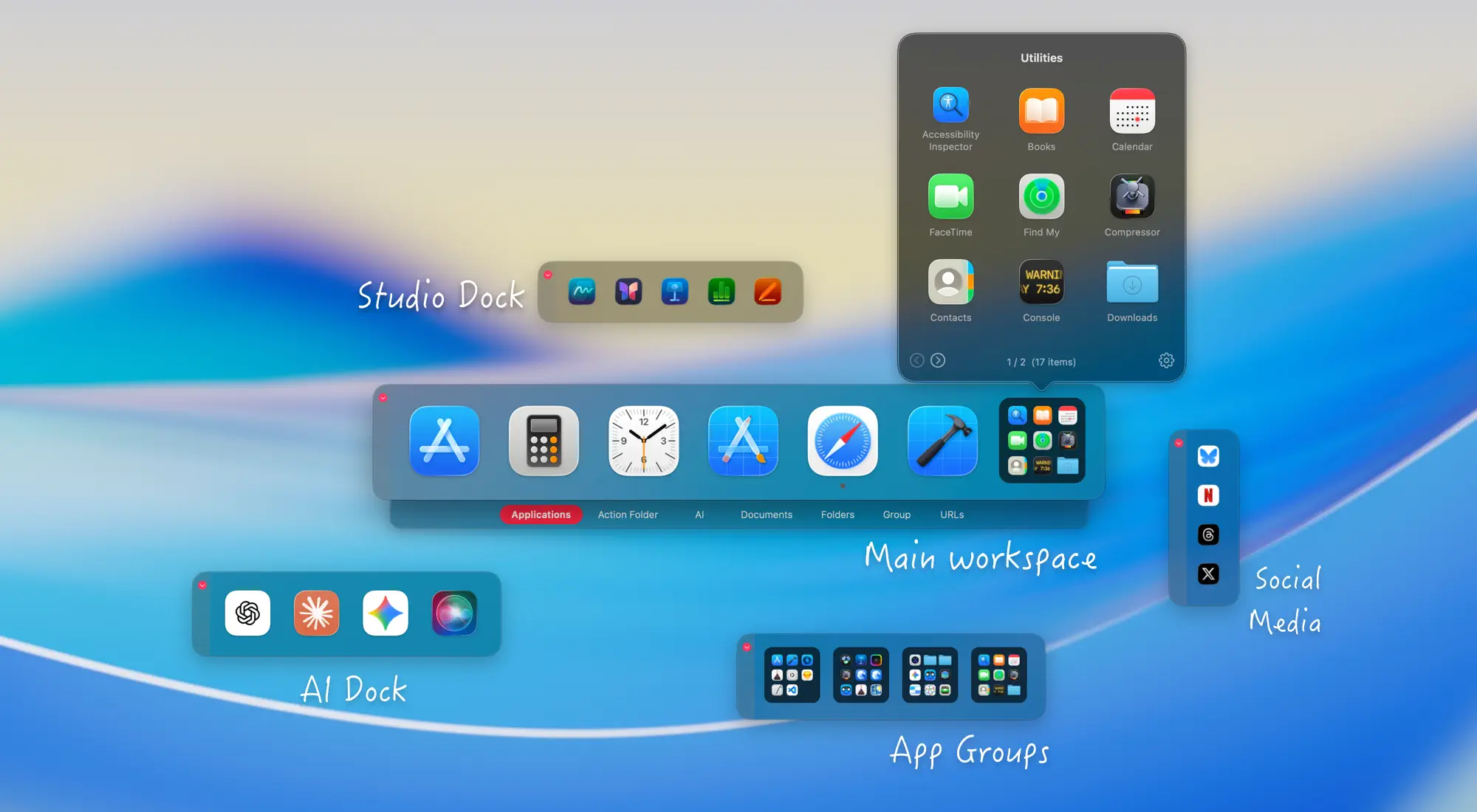
Keep your primary Dock exactly as it is. Dock Float opens up an entirely new, highly intuitive space for your overflowing apps, files, and complex projects.
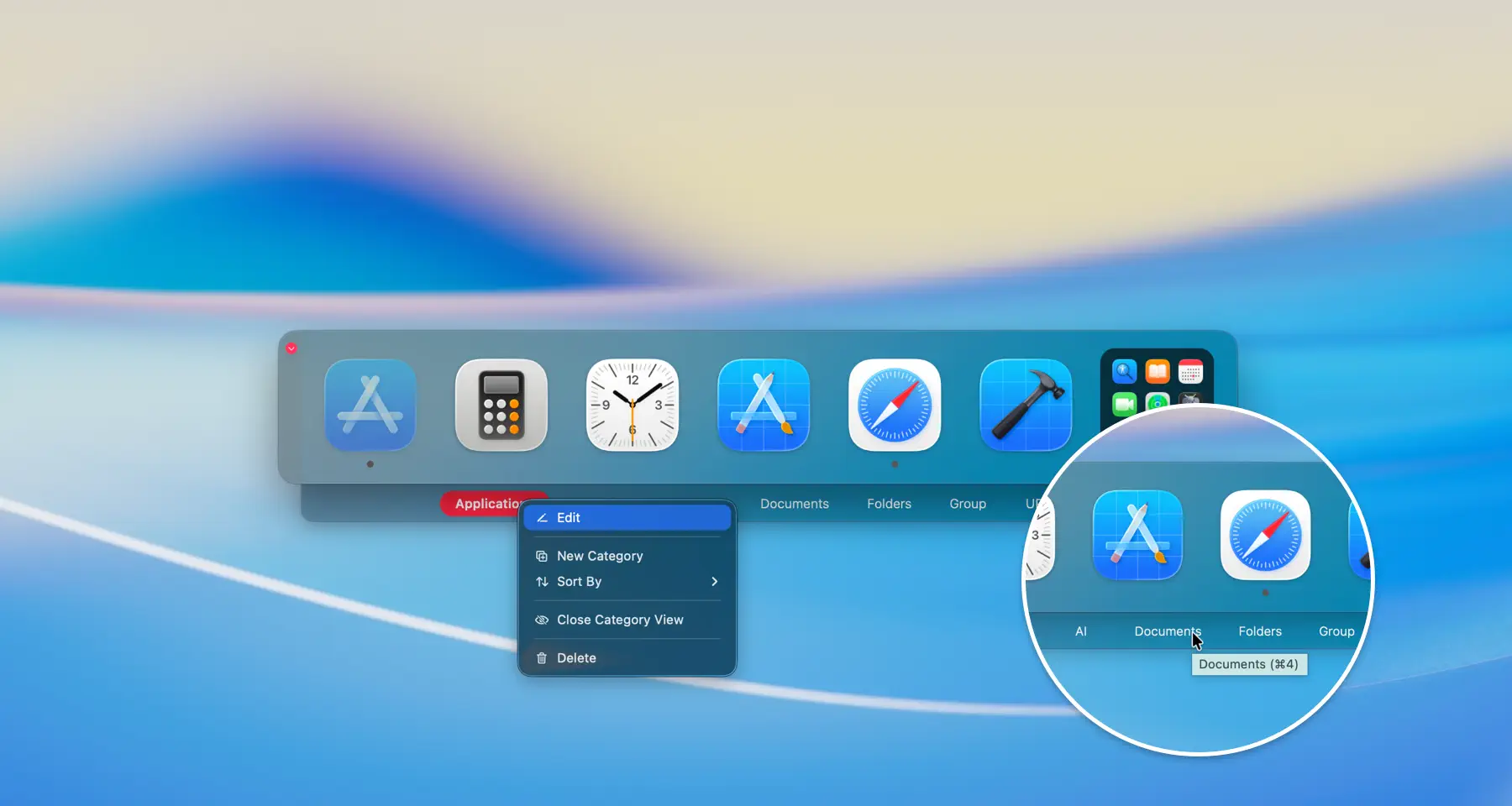
Create as many new Docks as you like and place them anywhere on your screen. There’s no need to cram everything into one crowded space. Within each Dock, you can divide items into Categories—flawlessly organizing apps, files, folders, and web URLs by their purpose.
And we built it for speed. Up to 10 categories are automatically assigned keyboard shortcuts (⌘1, ⌘2, etc.). Jump straight to the category you need with just your fingertips, without ever touching the mouse. Uncompromising power, effortless convenience.
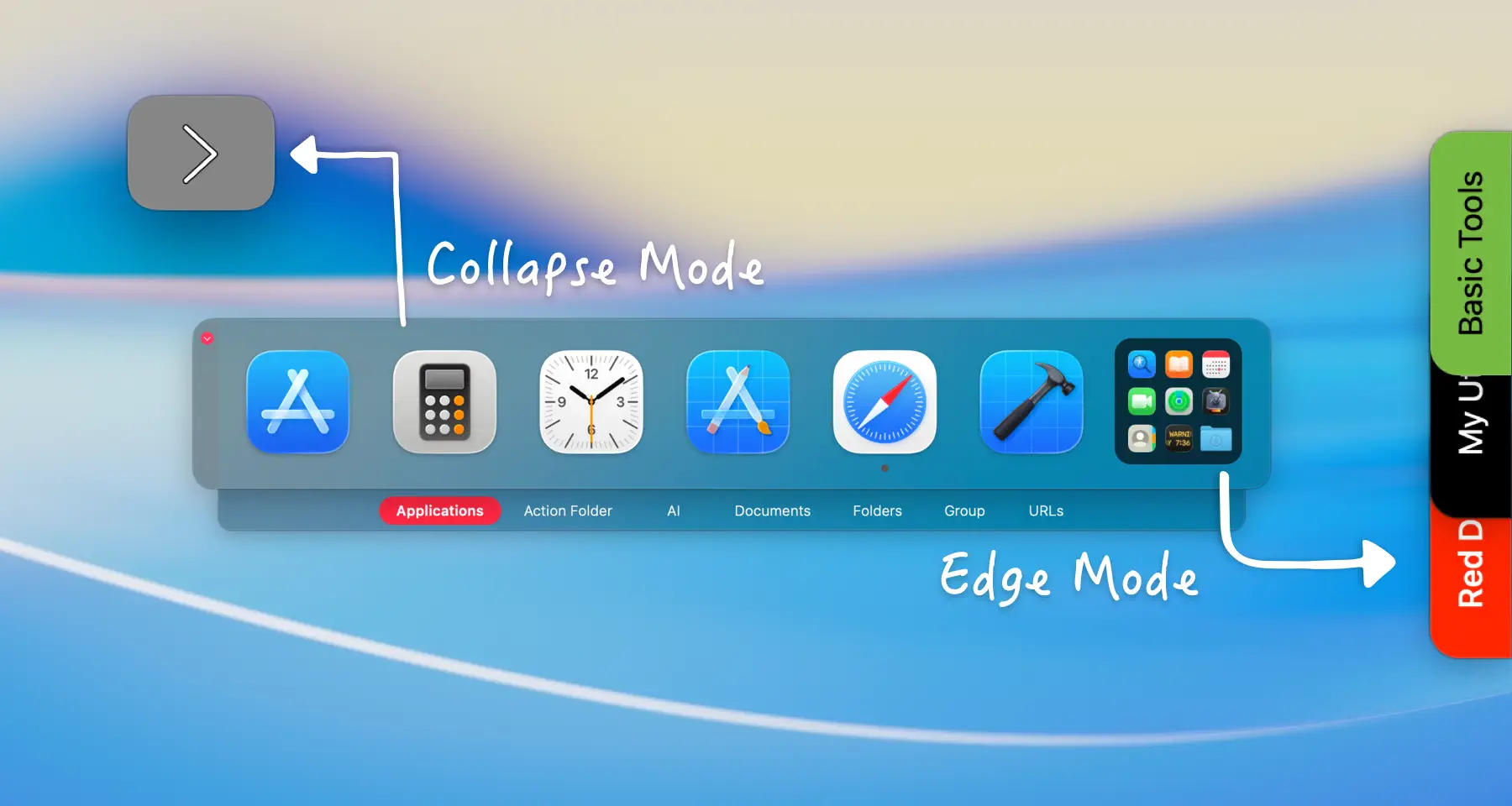
Collapse or hide idle Docks with a single click. Turn on Edge Mode to pin an open Dock to the edge of your screen like a bookmark.
Maximize your screen real estate while keeping your essential tools just a swipe away.
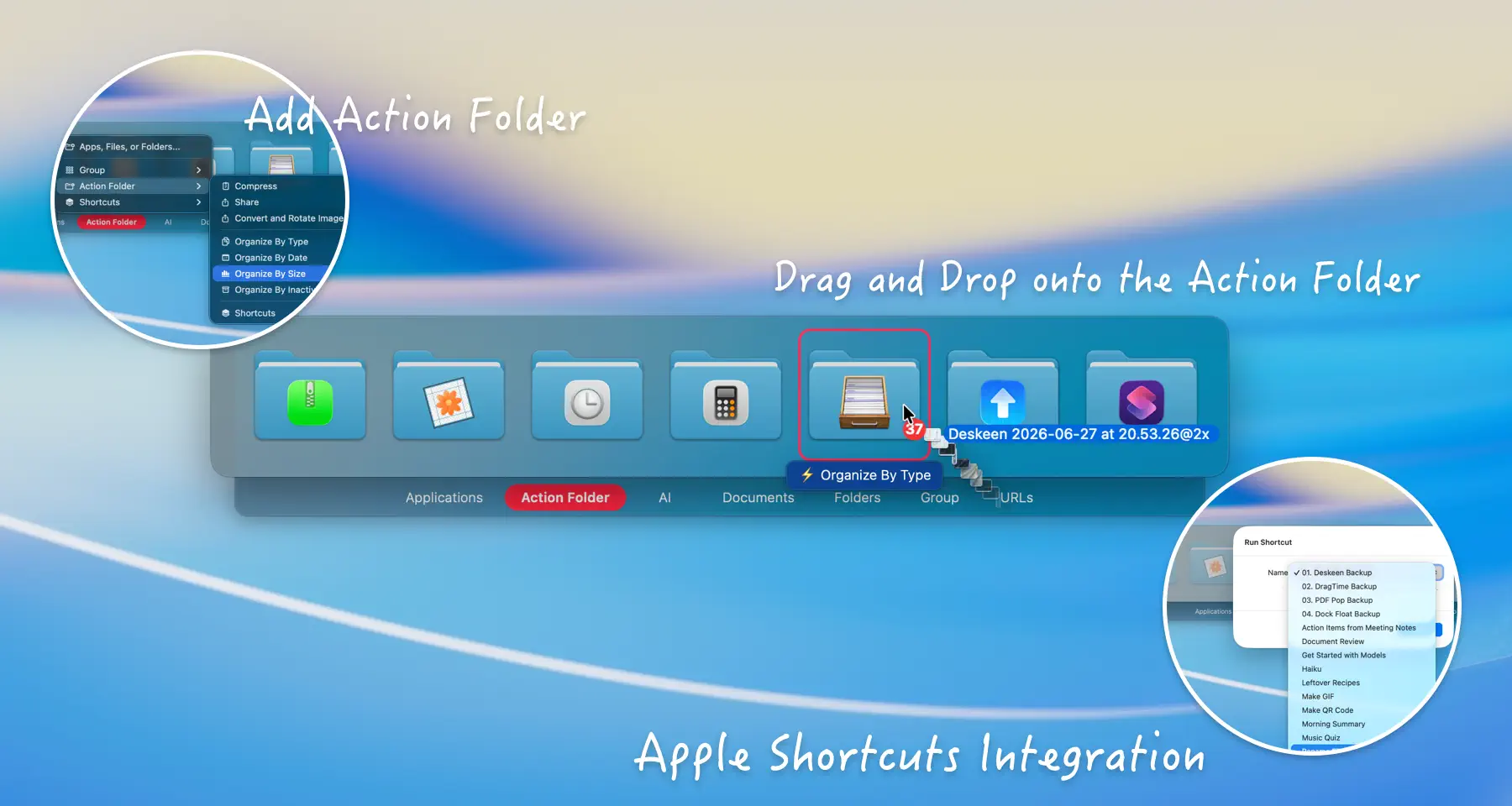
A Dock Float Dock is much more than a place to park your apps. Meet the Action Folder—a powerful, exclusive tool that takes your Dock further than macOS ever could. We’ve built in eight specialized Action Folders for essential everyday tasks like unzipping archives, converting images, and sorting files by extension, date, or size. Just toss a cluttered mess of files onto an Action Folder on your Dock, and watch them organize themselves instantly based on your rules.
Take it further with seamless Apple Shortcuts integration. Connect your custom Shortcuts (that take files or folders as inputs) directly to an Action Folder. A single drag-and-drop now triggers entirely automated, complex workflows.
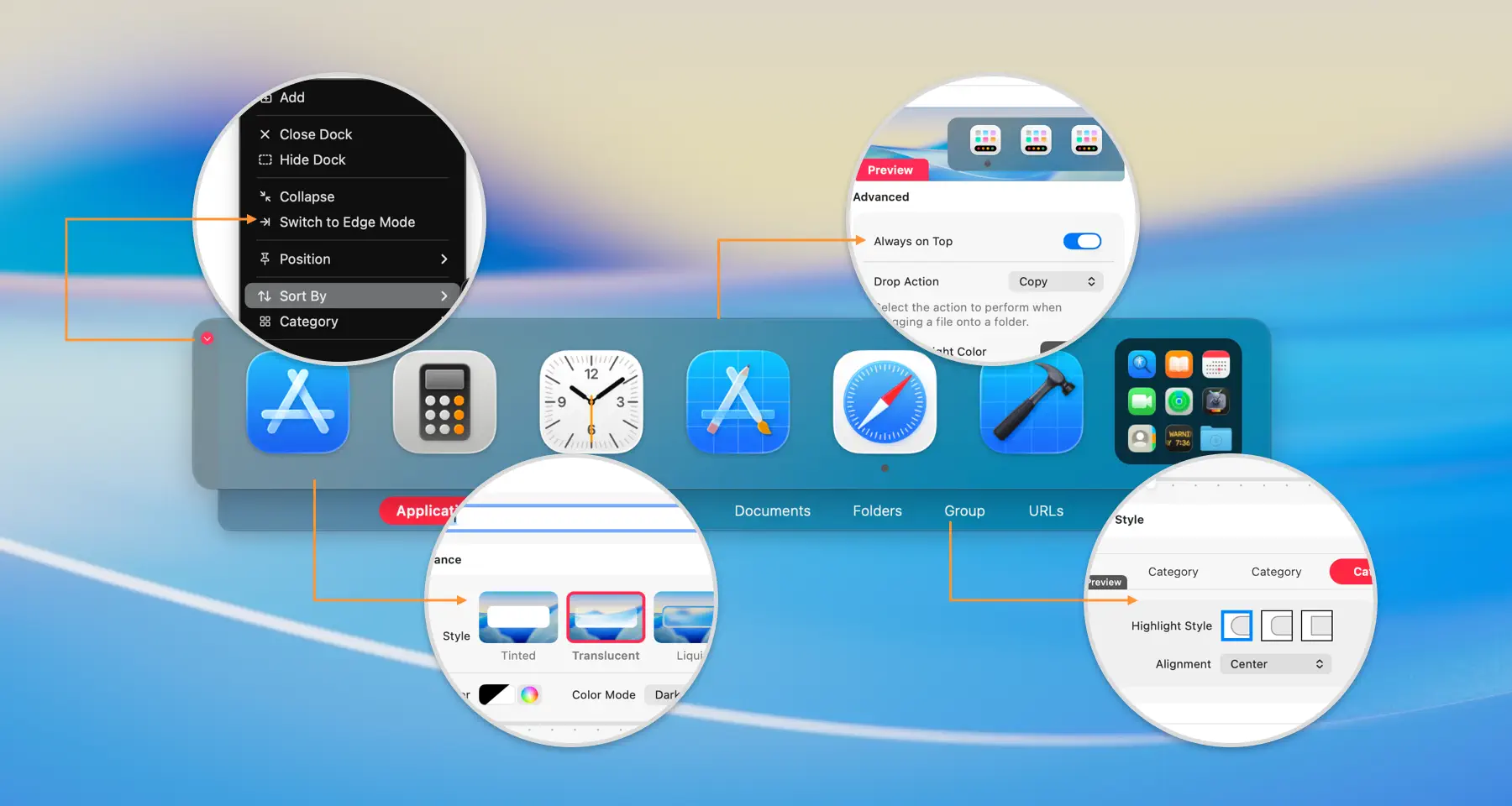
Dock Float gives you ultimate control over how it looks and feels. Fine-tune background colors, transparency levels, category styles, and text palettes so it perfectly matches your setup.
For power users, the devil is in the details. Save unique sorting methods for individual tabs—alphabetical for your development tools, chronological for recent files. Customize the indicator colors that show whether an app is running or hidden. You can even pre-define drag-and-drop actions (Move or Copy) for specific folders to slash repetitive tasks. It’s radical personalization, molded entirely to you.
Far beyond a basic launcher, Dock Float features signature killer capabilities designed to push your productivity to the absolute limit.
No matter how many tools you juggle, your screen should stay pristine. Group any related apps, files, or folders into a single, beautifully unified icon on your Dock based on your own logic. Click the Group, and everything you tucked away instantly unfolds.
It’s the most elegant way to conquer limited screen space.
Tired of digging for the same files every time you launch an app? Flow solves this intelligently. Pre-link essential files and folders to a specific program. The moment you launch that program, your predefined toolkit seamlessly glides in. No searching. Just unbroken focus
Flow solves this intelligently. Pre-link essential files, folders, and apps to a specific program. The moment you launch that program, your predefined toolkit seamlessly glides in from the edge of the screen. No searching. No friction. Just a perfectly uninterrupted workflow.
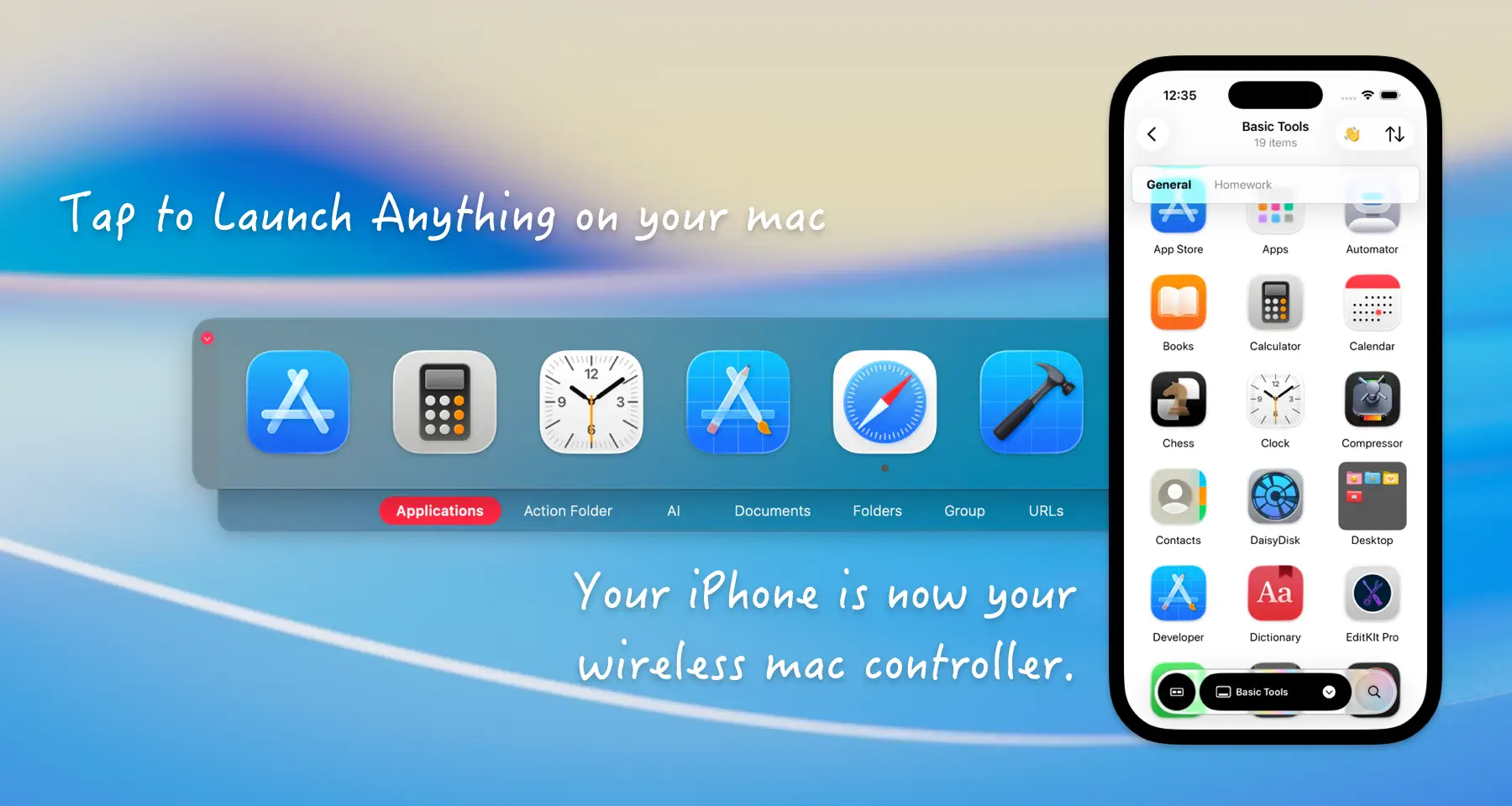
Extend your macOS command center directly into your mobile ecosystem. Open the Dock Float Remote app on your iPhone or iPad. Every Dock on your Mac syncs in real time. A light tap on your device launches Mac apps or instantly opens documents.
We’ve also added customizable Action Button to supercharge your speed. Map Mission Control, Launchpad (or Apps in macOS 26+), and Screen Capture to intuitive buttons. Command your Mac wirelessly without learning new keyboard shortcuts. Turn on the 'Keep Your iPhone Awake' option (while plugged in), and you have a dedicated, always-on macro pad right at your fingertips.
Copied text, a quick screenshot, a file you’ll need in exactly two minutes. Stop littering your desktop. Just give your mouse a quick shake. The Shelf quietly wakes up on your screen. Toss anything into this temporary holding space and pull it out whenever you need it. It’s your secret workspace, designed to ensure your focus never breaks.